The AI workspace for Pakistani litigation
Your cases. Your research. Your drafts. One workspace.
Draft a First Appeal or a Reply from the case record, research Pakistani law with sources you can open, and see what CaseOps Review flags before you file, with your team on one workspace across the web, iPhone and Android.
 Member of NVIDIA Inception
 Incubated at NIC Lahore
Litigation still runs on paper and memory.
When the file, the dates, the research and the history all live in different places, a case depends on whoever remembers it. CaseOps brings them into one source-backed Case.
Before CaseOps

- Physical bundles and scanned PDFs in different places
- Next dates in WhatsApp groups and hearing diaries
- The history of the case in one clerk’s memory
- Research and drafting kept apart from the file
With CaseOps
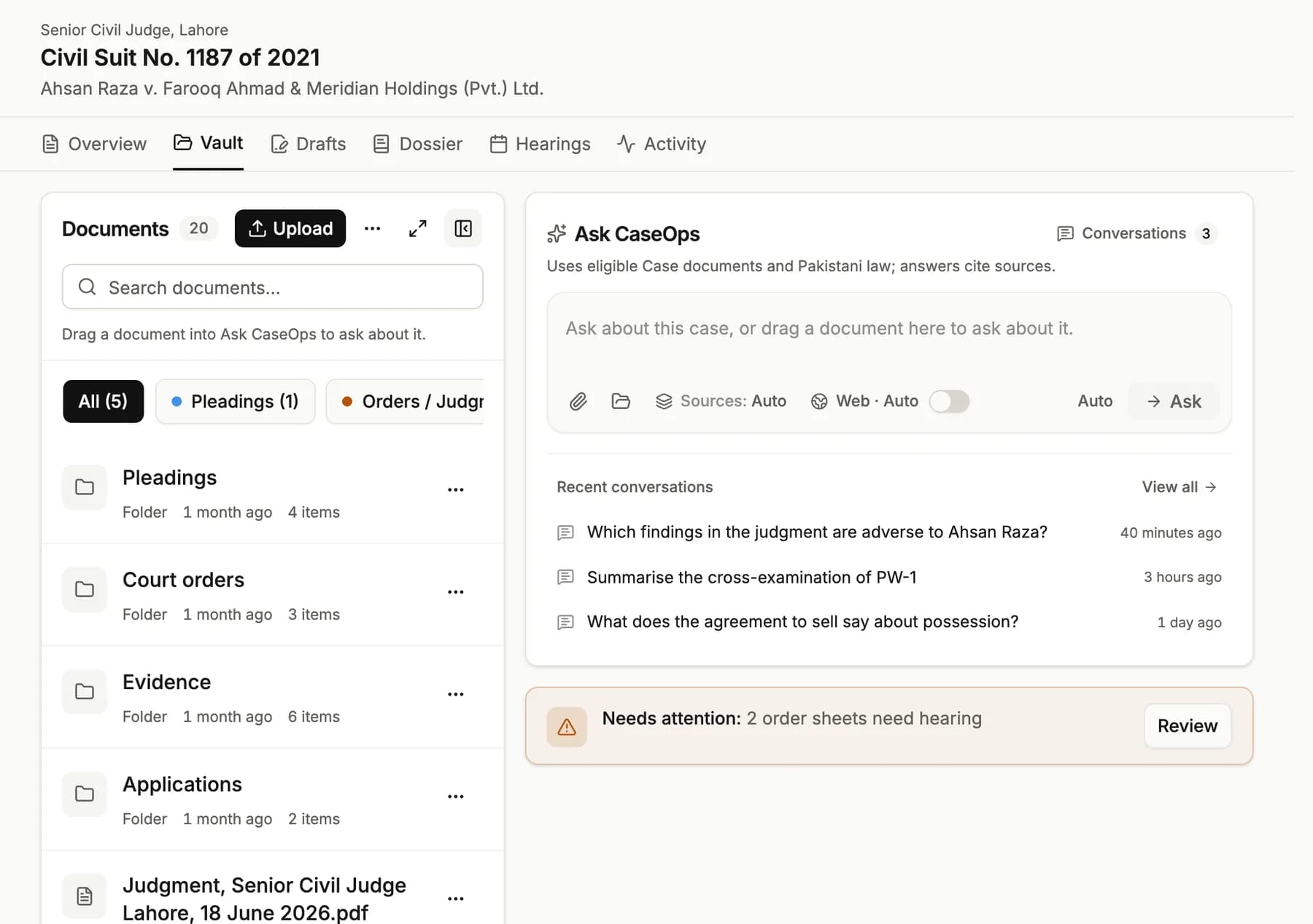
- A reviewed case record in one private Case
- Hearing dates kept with their source
- A shared history of what changed and who did it
- Research and drafts that work from the record and cite it
Drafts that show their work, ground by ground.
First Appeals and Replies drafted from the case record and Pakistani law, with grounds tied to the sources behind them, and reviewed before you rely on them.
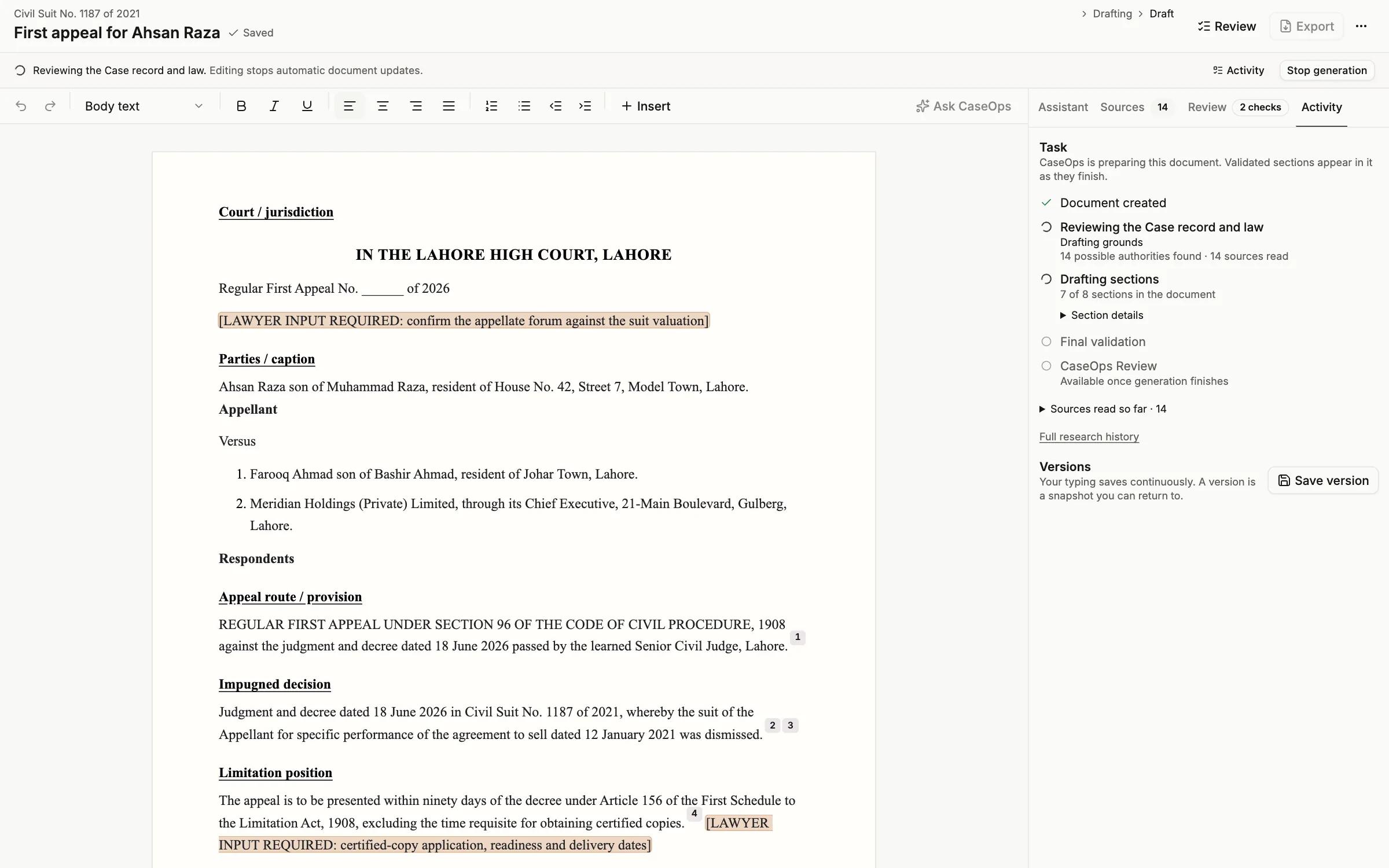 01
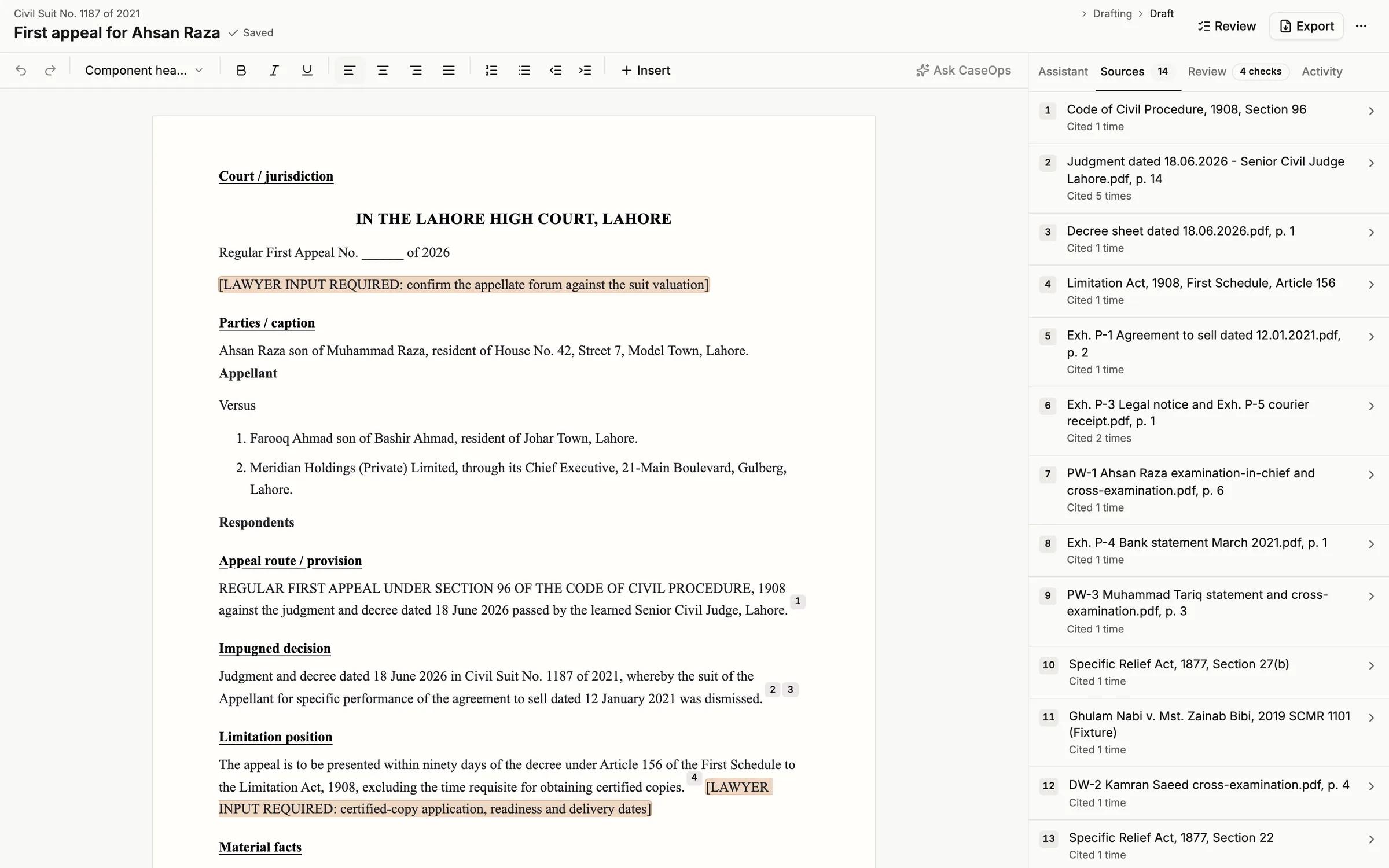
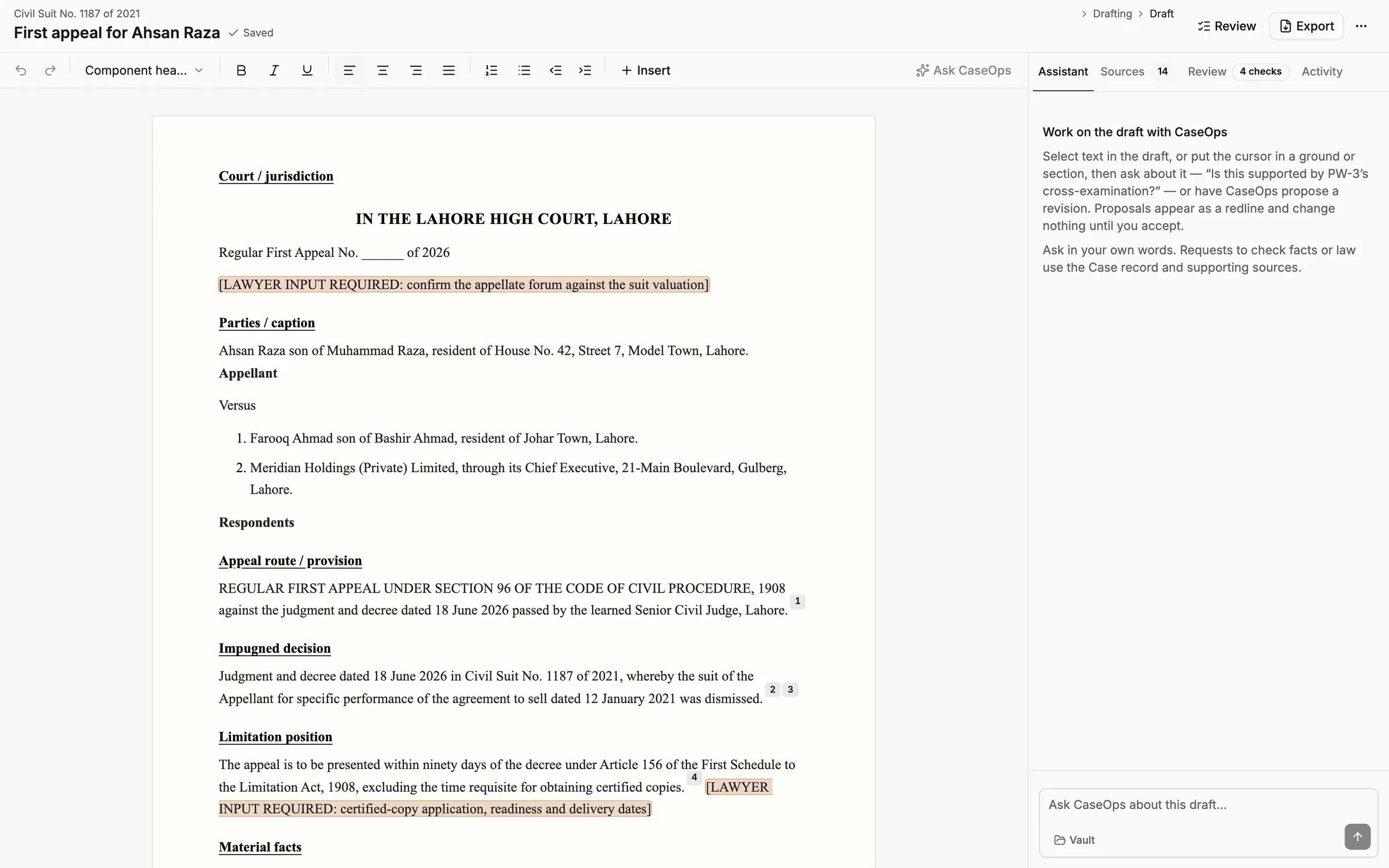
Drafted from the case record
Start a First Appeal or a Reply from the Case. CaseOps reads the record and the law, then writes the document section by section while you watch. What only counsel can supply stays marked LAWYER INPUT REQUIRED instead of being guessed.
- 02
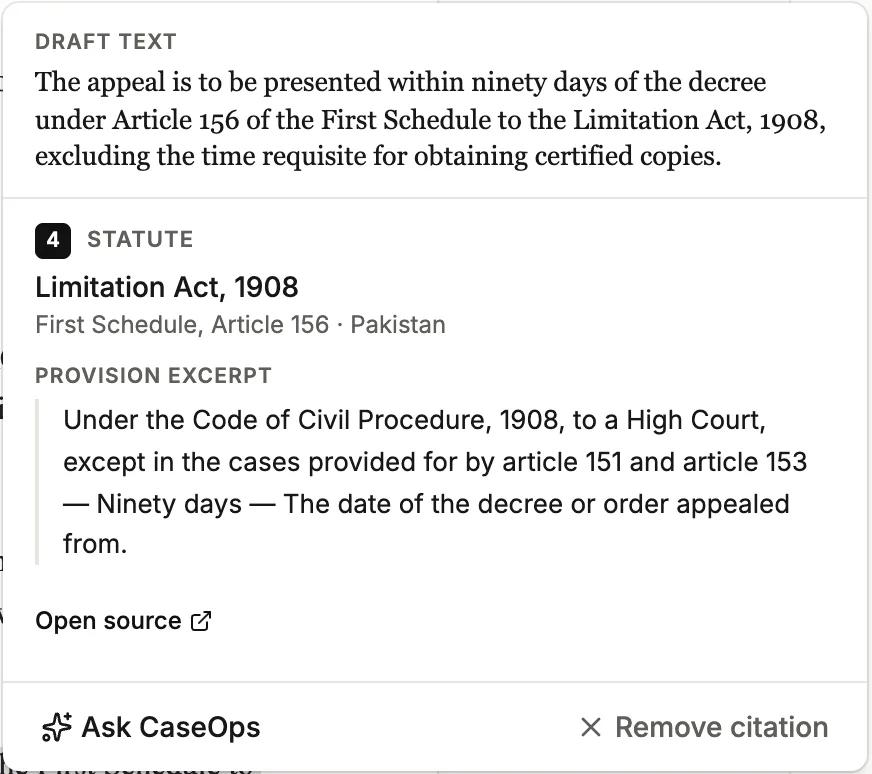
Open the source behind a ground
Select a citation to see the draft sentence beside the statute excerpt or record page it relies on, then open the full source. The Sources tab lists everything the draft cites.
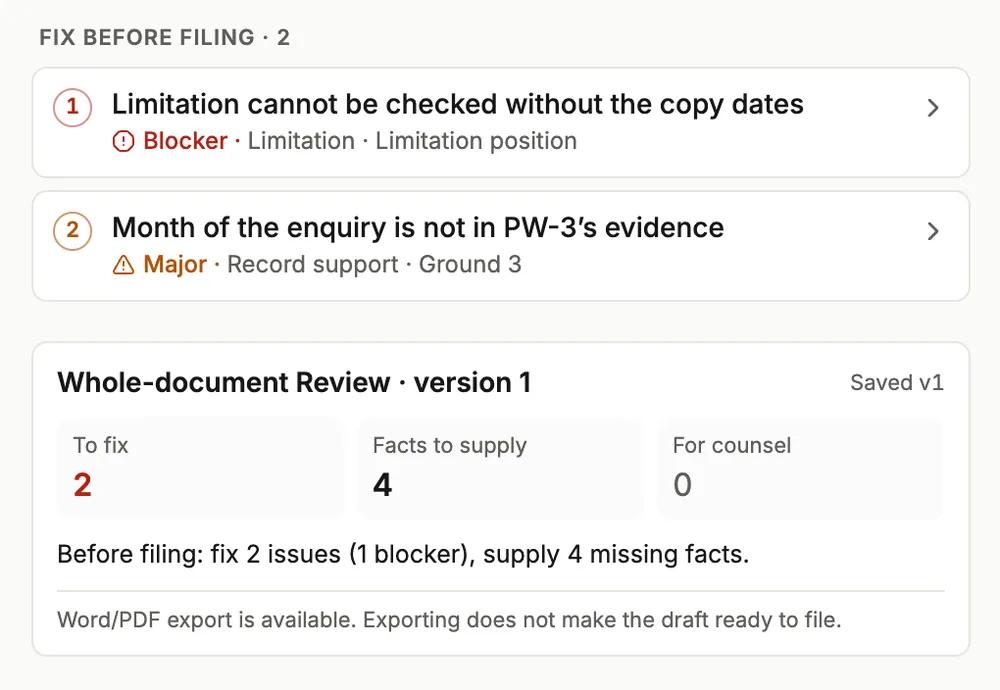 03
Findings to weigh before you file
CaseOps Review reads the saved draft against the Case record and the law and lists what to fix, each finding with the sources behind it. The findings are for counsel to weigh; nothing changes without your approval.
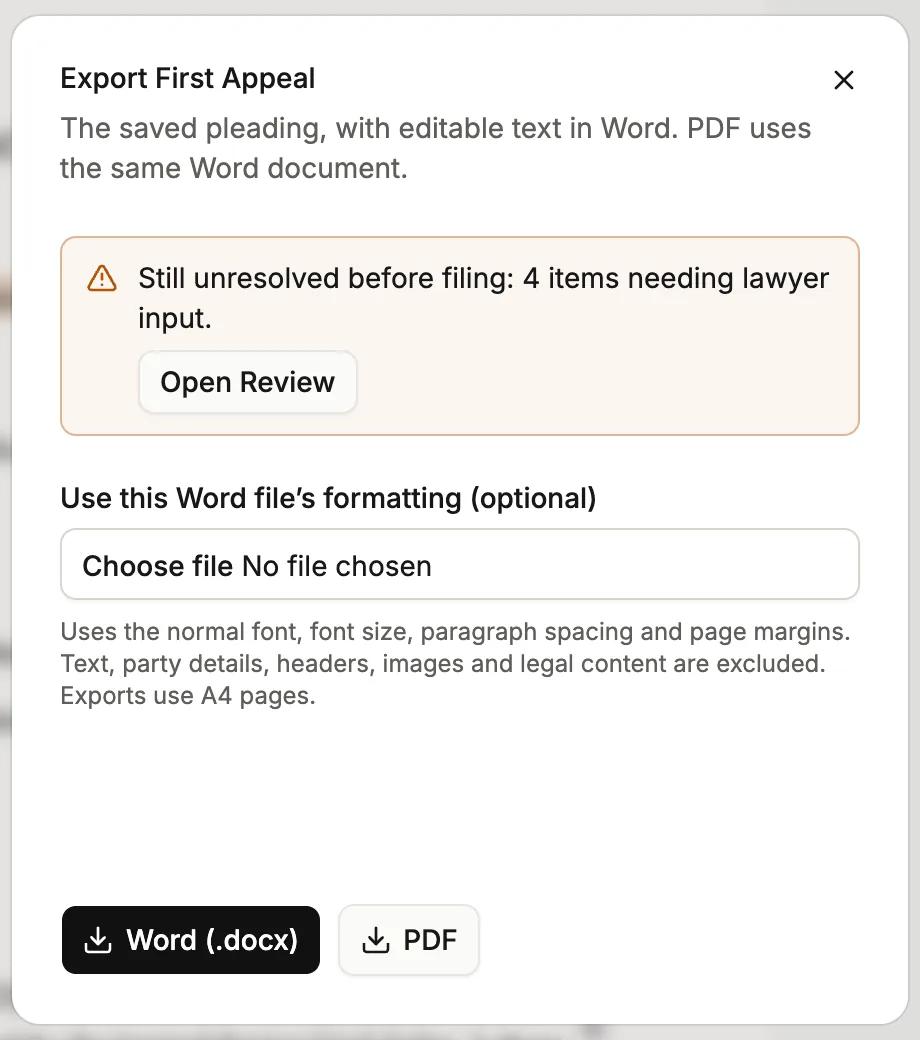 04
Export to Word or PDF
Export the pleading as editable Word or as PDF, optionally in your chamber’s own formatting. Items still needing lawyer input stay flagged at export.
Drafting walkthrough
See a First Appeal go from record to reviewed draft.
Book a session and we’ll walk you through drafting, sources, CaseOps Review and export on a synthetic case.
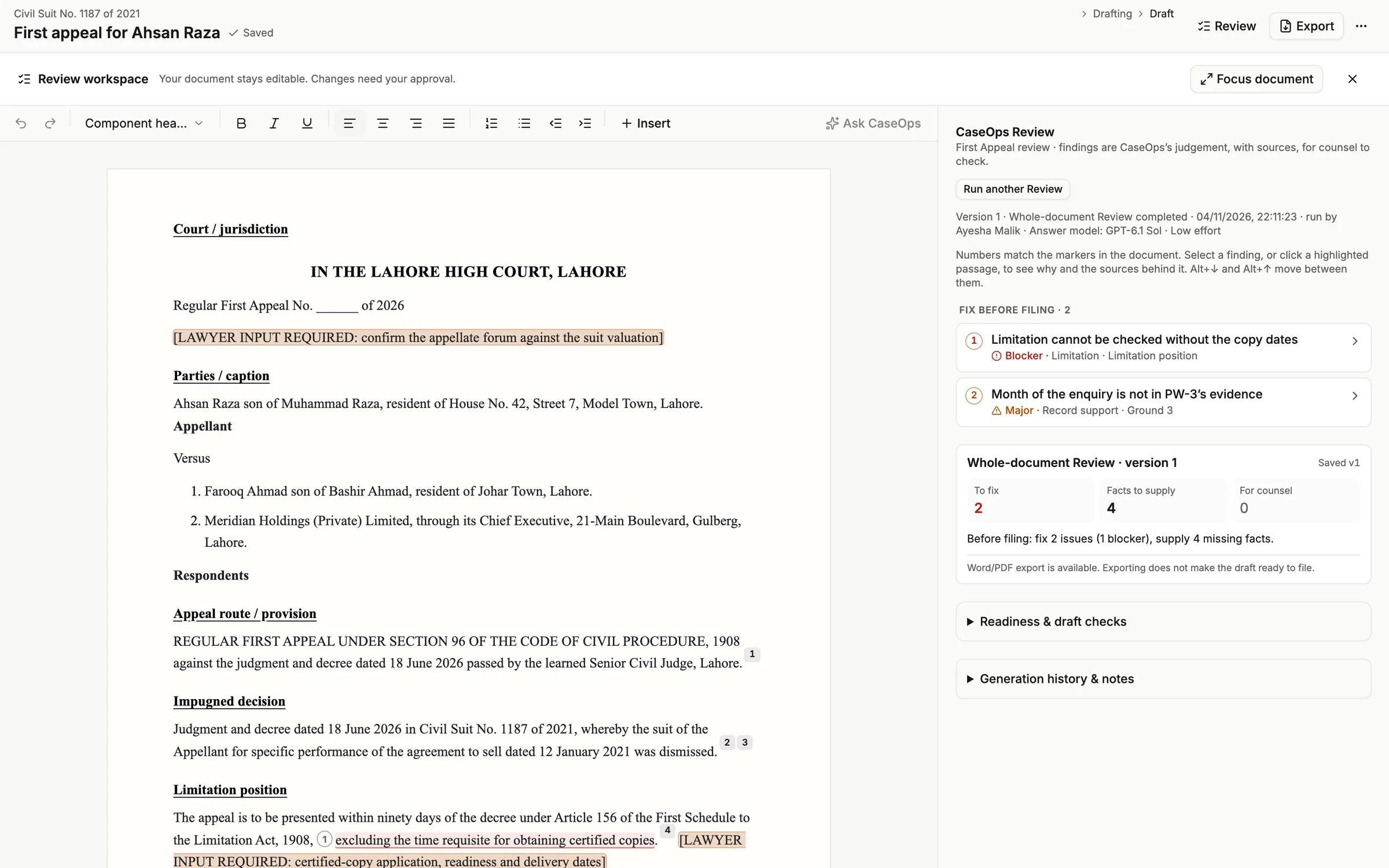 Drafting Workspace · synthetic case
Legal AI needs receipts.
CaseOps shows the judgment, statute, or case document behind the output, so the lawyer can open the source before relying on the answer.
- Cited answers
- Source cards
- Used vs considered sources
- Judgment and statute views
- Lawyer review before reliance
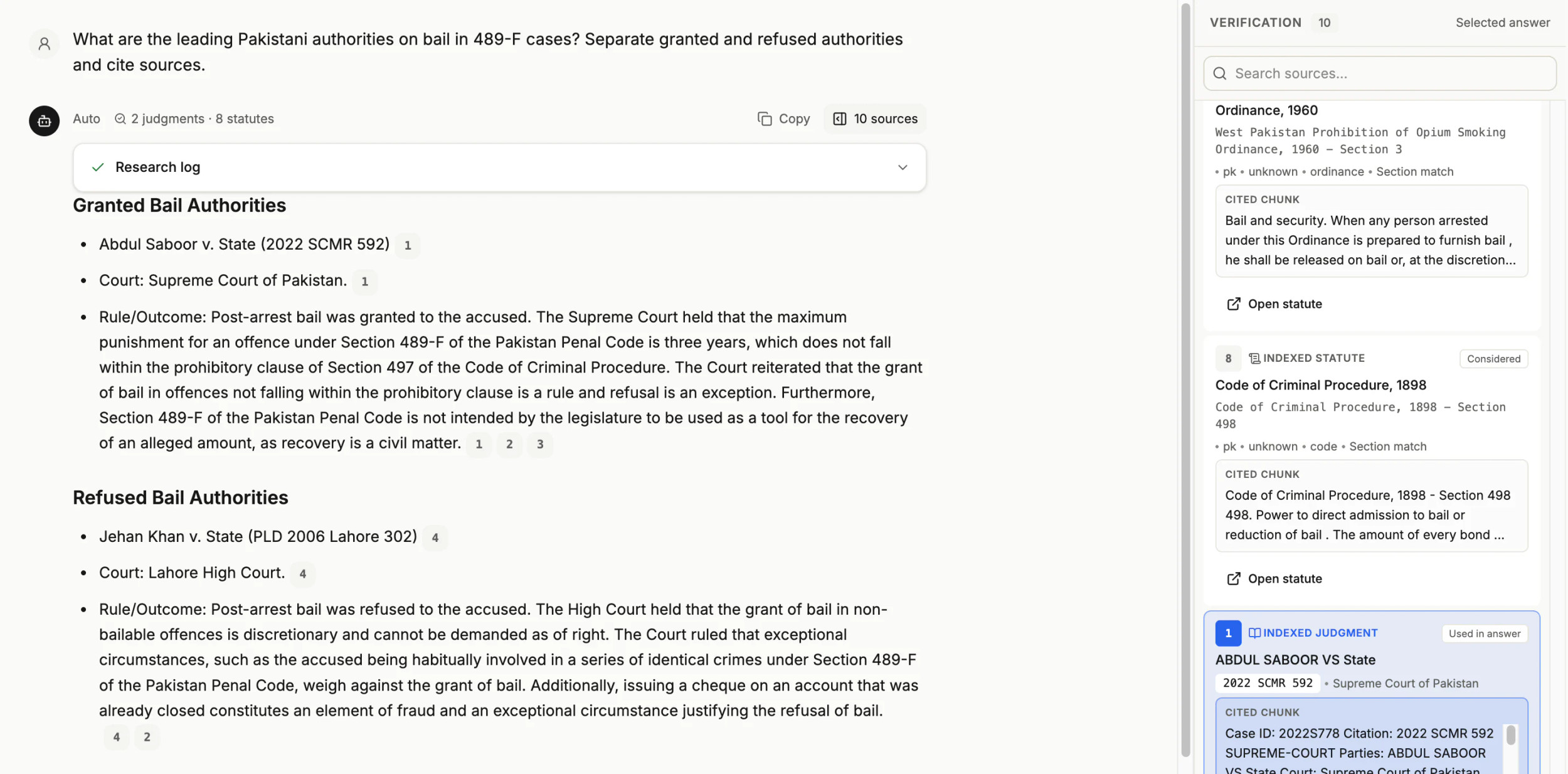
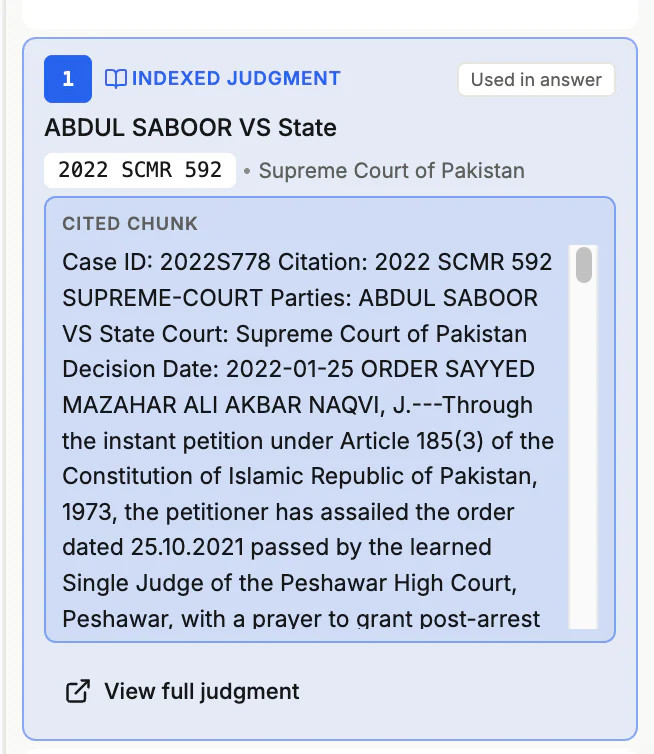
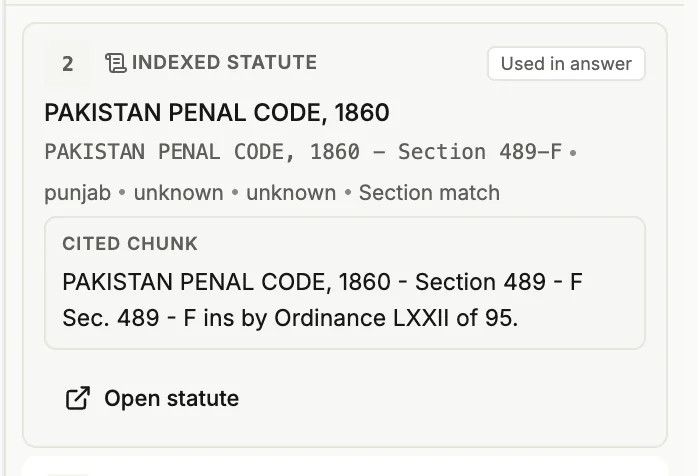
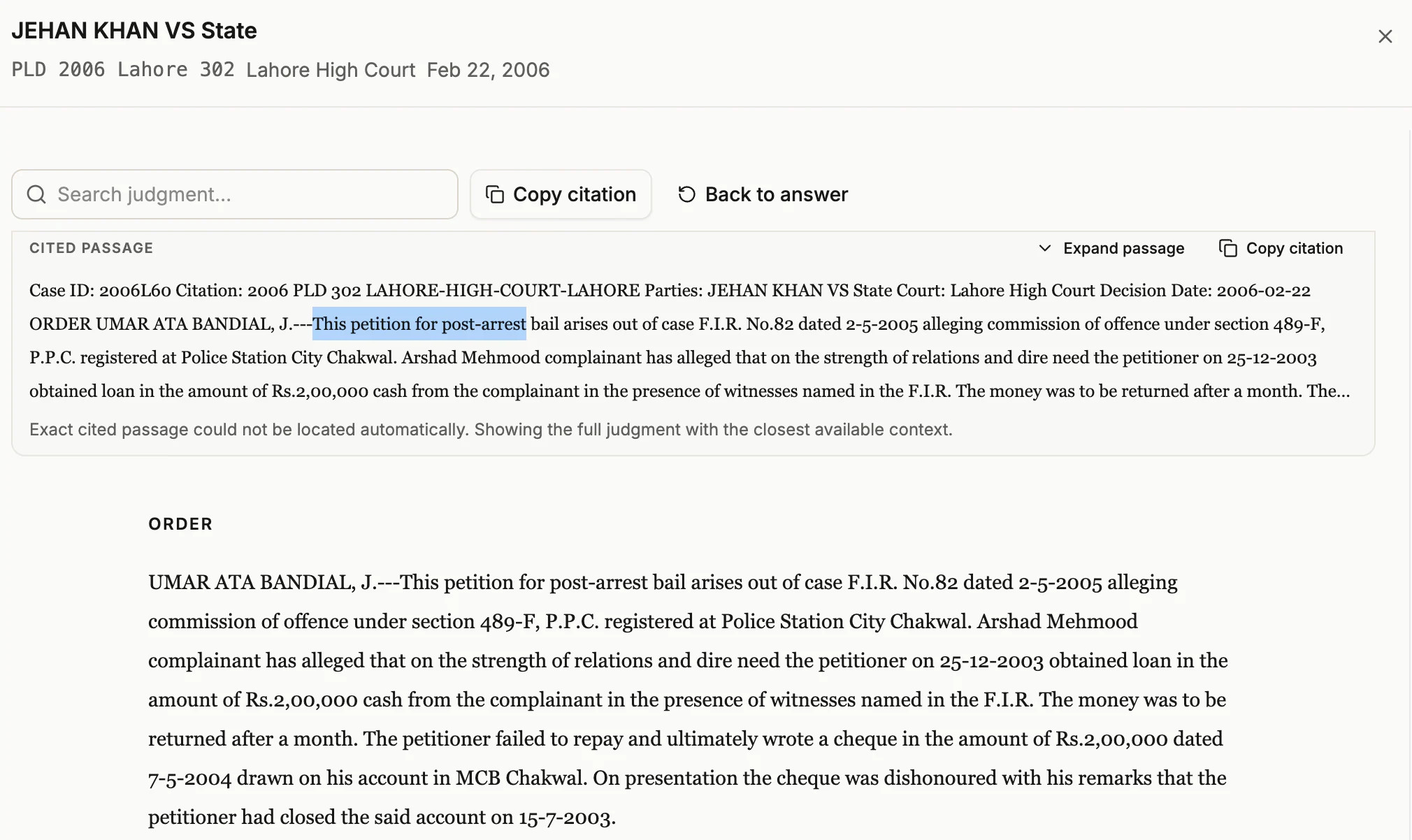
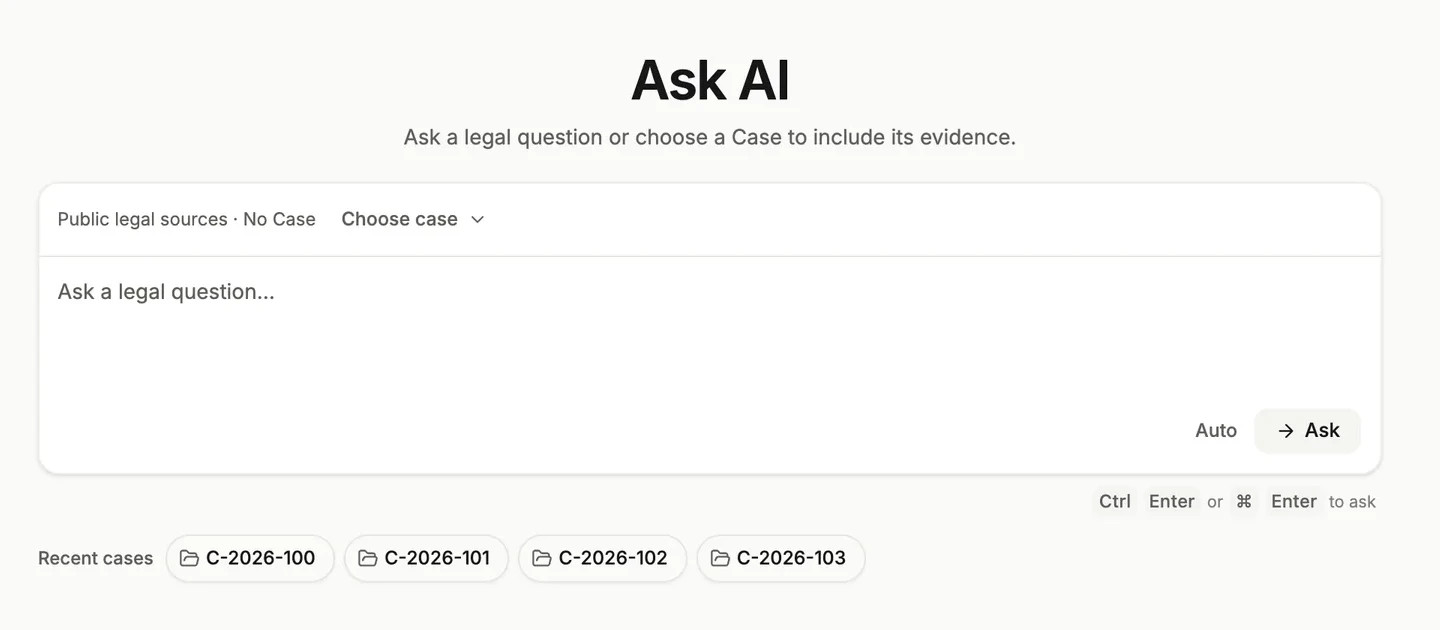
Run legal work over the case, not a blank chat.
CaseOps can research the law directly. When a case file is connected, the same legal work becomes grounded in the actual case.
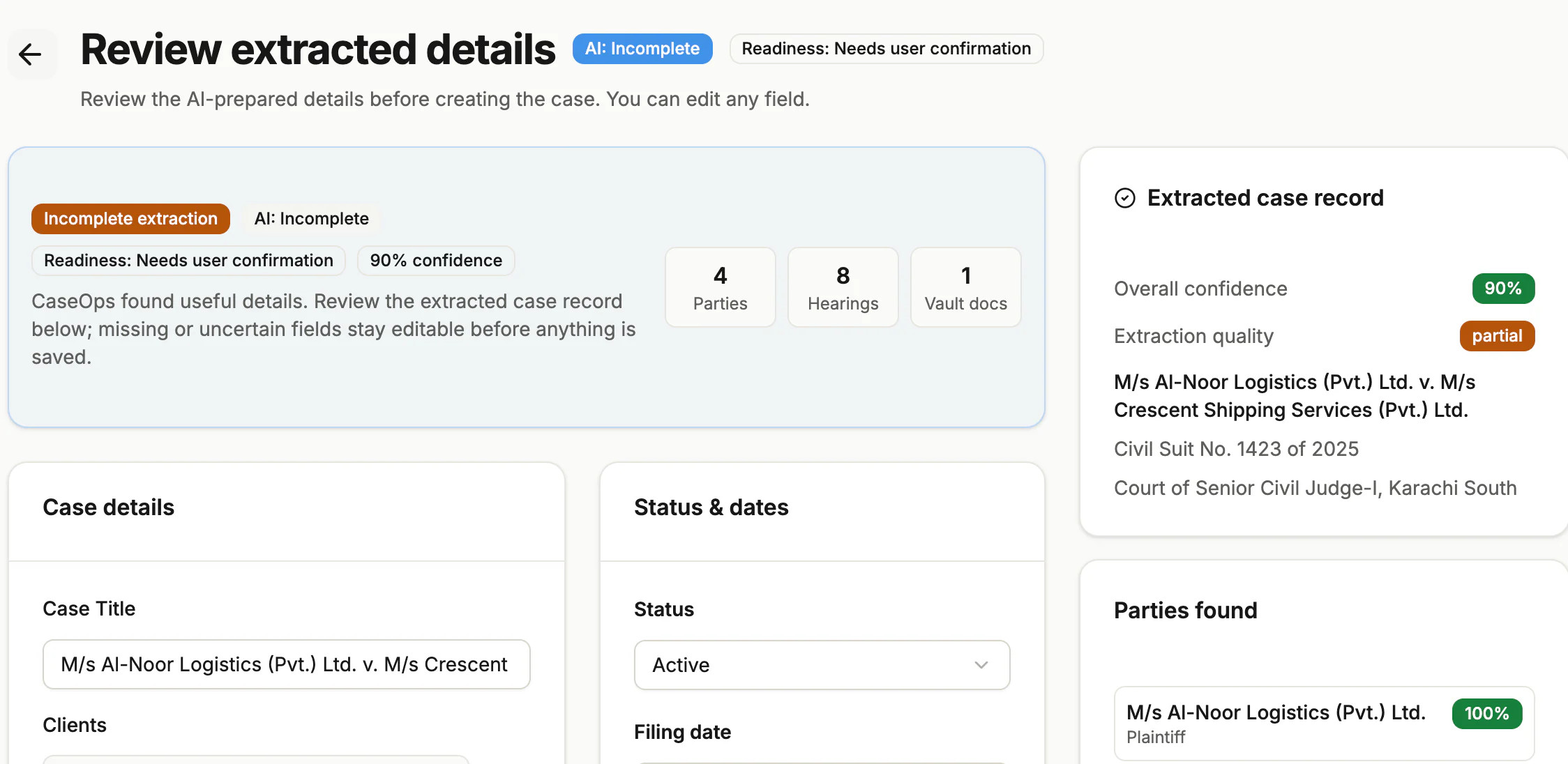
Turn a case bundle into a reviewable case record.
Upload the case file and CaseOps extracts the case record for review before it becomes a case workspace that research, drafting and CaseOps Review all read from.
- Upload pleadings, replies, order sheets, evidence, notices, emails, and ZIPs
- Extracted details stay reviewable and editable
- Saved to the private Case Vault after the case is created
- Research and drafts then work from the reviewed record
The court day
One court order.The right person at every step.
The clerk captures it, CaseOps reads it, the team sees what changed, and a lawyer decides what the client is told. Principal, associate and clerk work from the same Case, with the access their role allows, on the web and in native iPhone and Android apps.
Step 1 of 5. The clerk, at court
The order is captured before anyone leaves court.
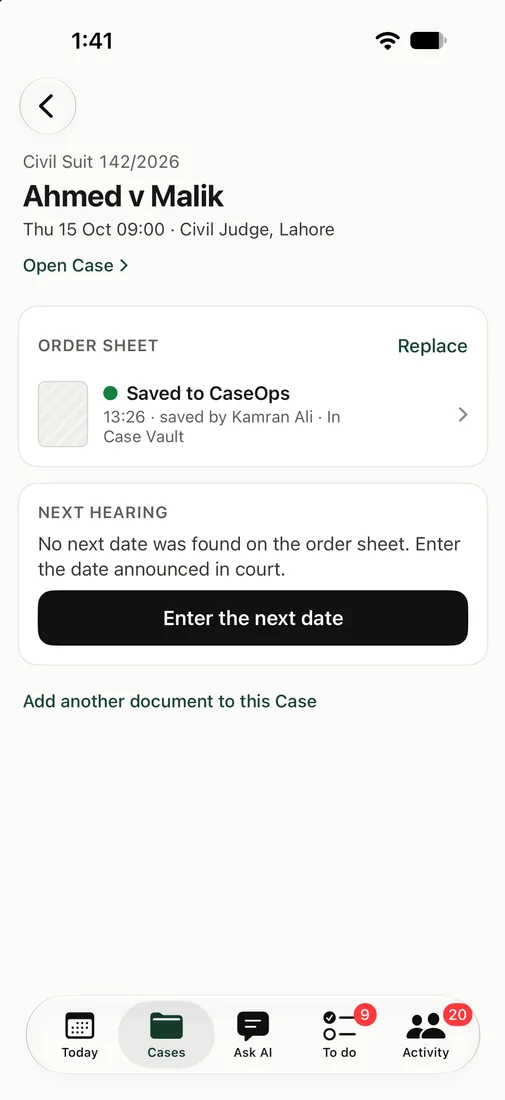
The hearing is already on the clerk’s phone. Scan the order sheet and file it to that hearing. If the court building has no signal, it waits on the phone and sends when the connection returns.
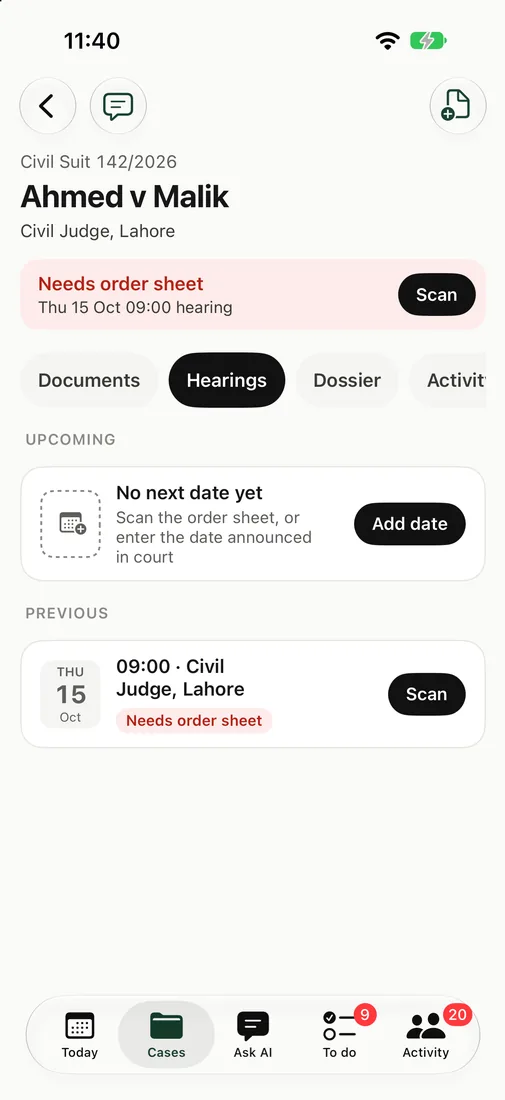
Step 2 of 5. CaseOps, in the background
CaseOps reads the order and updates the hearing.
After upload, CaseOps adds a summary to the hearing, labelled to be checked against the order. A next date it finds stays a suggestion until a person confirms it.
Step 3 of 5. The chamber
Each person sees what their role needs.
The same Case, but not the same notification.
- The reviewing lawyer
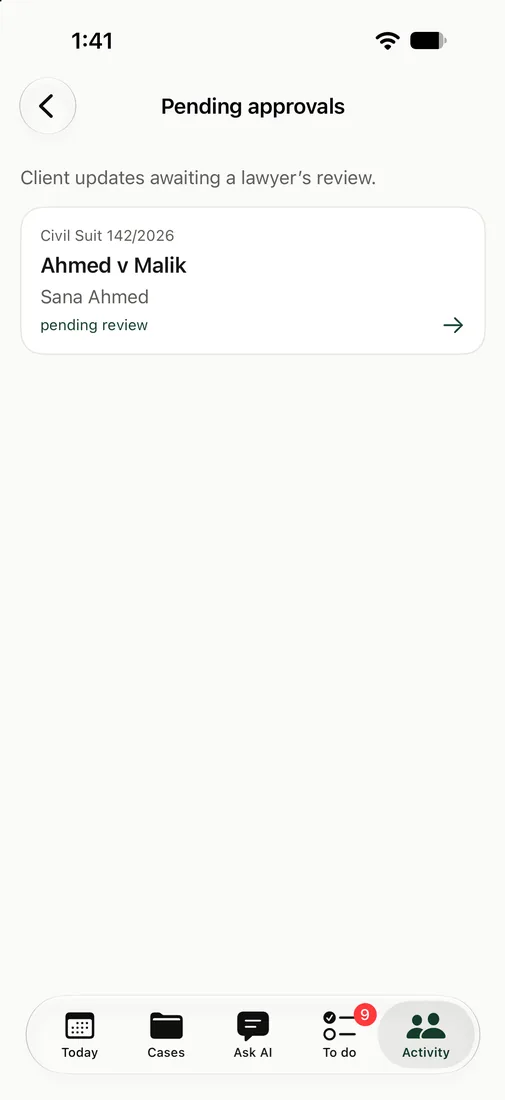
- When a client update is prepared, gets a private alert: “Client update ready for review”. It goes to the assigned associate, or a principal if none is assigned, and names no client, Case or court.
- The principal and assigned team
- See the hearing summary and what changed, on Today and in the Case, as their access allows.
- The clerk
- Sees the order on the hearing it was filed to, and moves on to the next matter.
All of this is internal: nothing has reached the client. An alert is only a prompt, so the review also waits in Activity if notifications are off.
CaseOpsnowClient update ready for review
An update is ready. Open CaseOps to review the source and proposed client email.
Step 4 of 5. The lawyer
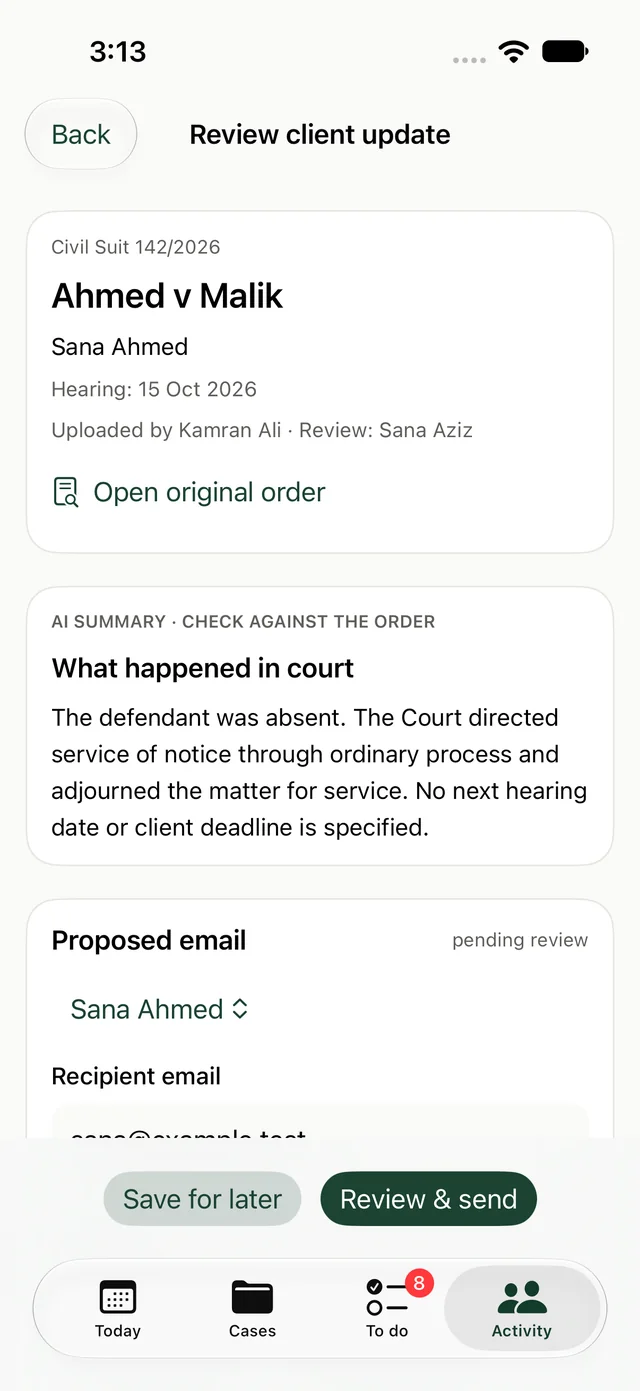
A lawyer checks it, edits it and decides.
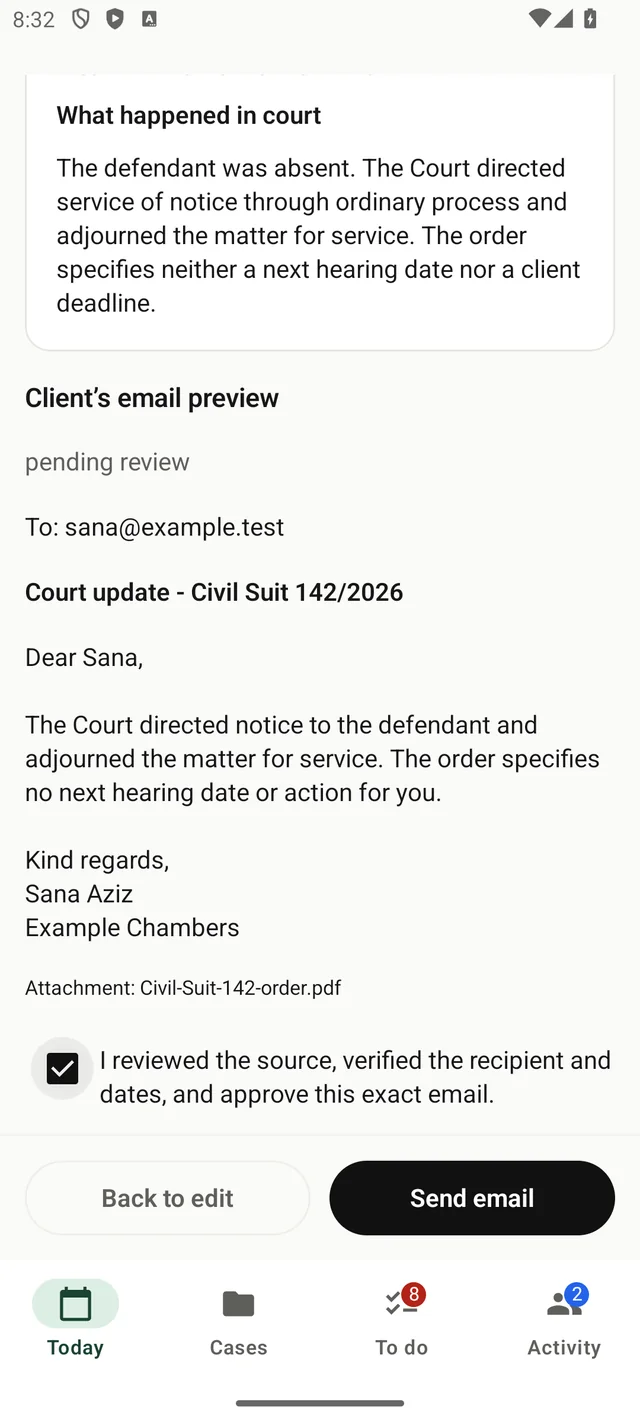
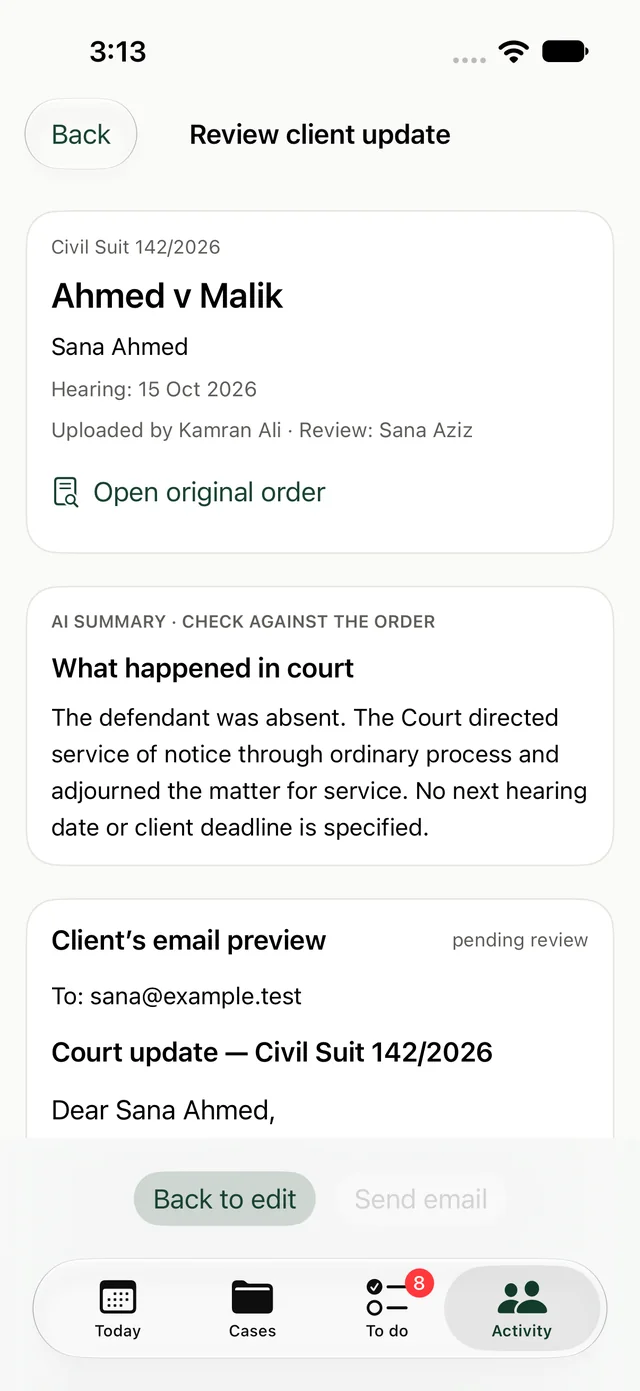
When an active client is linked to the Case, CaseOps proposes a plain-English email. The lawyer opens the original order, can rewrite every word, and confirms the source, recipient and dates. A clerk can start this work but cannot send it.
Step 5 of 5. The client
Keep clients informed. Keep lawyers in control.
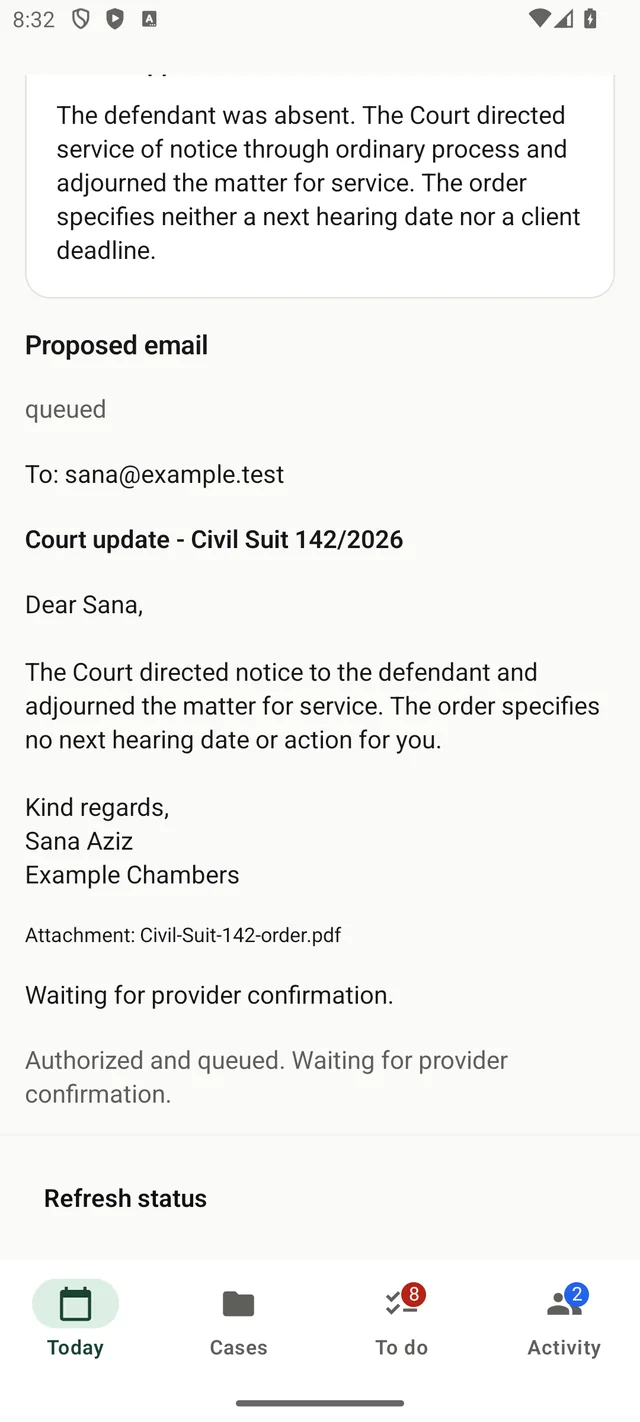
CaseOps turns the order into a plain-English update the client can follow, and their lawyer decides what it says. The approved email then enters delivery to the client’s current address, with their consent on that Case.
- Queued
- Approved and waiting to send
- Sent
- Accepted by the email provider
- Delivered
- Confirmed by the provider’s receipt
CaseOps tracks each status as the provider reports it, so “queued” does not mean delivered. Only a lawyer can approve the send: a clerk cannot.
WhatsApp hearing-date updates are a separate service that clients opt into, with their own consent.
Watch it happen on an iPhone.
What the film shows
- At court. On an iPhone, the hearing is opened from Today and the two-page order sheet is scanned.
- Filed. The order is saved on the phone first, then shows as saved to CaseOps in the Case Vault.
- Order read. The reviewer’s iPhone shows the CaseOps alert “Client update ready for review” in Notification Center.
- Draft prepared. The review screen shows an AI summary marked “check against the order”, and the original order opens from it.
- Lawyer approves. The lawyer confirms they reviewed the source, recipient and dates, approves the exact email and taps Send email.
- Email queued. The app shows “Authorized and queued. Waiting for provider confirmation.” Delivery has not been confirmed.
- The Case’s Dossier working brief opens with its citations. The brief was prepared before this order was scanned.
- Ask AI on the Case shows a saved answer from an earlier run, and a citation in it opens the Case document behind it.
- The film ends on CaseOps for iPhone beside CaseOps for Android (a screenshot of the synthetic demo workspace, not a recording).
And every day after court: the same Case, three roles.
- Principal Counsel
- Sees cases, drafts, hearings and team activity across the chamber.
- Associate Counsel
- Runs legal work, prepares briefs and reviews client updates on assigned cases.
- Case Clerk
- Captures orders, uploads bundles and keeps hearing dates current. Cannot send client emails.
CaseOps Mobile is on the App Store and Google Play.
Both apps sign in to an existing CaseOps workspace. The iPhone app is for team workspaces; the Android app also works for solo practitioners.


App screens are captures from CaseOps iOS and Android builds using synthetic demonstration data. Chambers, parties, Cases and documents are fictional. Every screen in this sequence shows the same synthetic Case, Civil Suit 142/2026, captured in separate sessions on iPhone and Android, with background processing shown as one step. The order sheet is illustrated, and the alert shows the wording CaseOps sends, drawn rather than captured from a device. The film is an iPhone recording of a different fictional Case, with waiting time shortened.
Built for confidential legal work.
Case-level access controls, organization isolation, encrypted data handling, and AI processing that does not use customer data for model training.
Purpose-built access controls
Organization isolation and Case-level permissions enforced through application and database controls.
No model training on your data
Customer documents, prompts, and generated outputs are not used to train underlying AI models.
Protected case data
Encrypted at rest, protected in transit, and served through signed, time-limited, access-controlled links.
Enterprise AI infrastructure
AI processing runs through enterprise cloud model services, not consumer chat products.
Built by software engineering + Pakistani litigation expertise.
CaseOps is built by a software engineer who was previously technical lead on the modernisation of Australia’s Modern Slavery Statements Register, and a lawyer practising Pakistani litigation at Axis Law Chambers — both LUMS graduates.
Hamza Liaqat
Co-Founder & CEO
LUMS CS graduate. Previously technical lead on the modernisation of Australia’s Modern Slavery Statements Register.
Hammad Hussain Shah
Co-Founder & COO
LUMS law graduate and practising Pakistani litigator at Axis Law Chambers.
We’re working directly with our first litigation teams.
CaseOps is onboarding a small number of Pakistani litigation teams while the product is early. We demonstrate it ourselves, help with onboarding and first-matter setup where that’s useful, and use what we learn from real chamber workflows to shape the product.
- A walkthrough led by the founders, in person where that works
- Help setting up your first matter in CaseOps
- A direct line to the people building the product
- Your workflow feedback shapes what we build next
Founder-led onboarding for early chambers. We discuss access with each chamber directly.
Questions, answered.
Bring your next appeal. See it take shape.
See CaseOps draft from the case record, open the source behind a ground, and see what CaseOps Review flags before you file.