CaseOps Mobile · iPhone & Android
CaseOps, wherever you work. Including court.
Native iPhone and Android apps on the same Case record as the web workspace: the court day, case documents, cited answers, team activity and lawyer approvals, for lawyers and clerks alike.
Sign-in needs an existing CaseOps workspace. The iPhone app is for team workspaces with two or more active members; the Android app also works for solo practitioners.
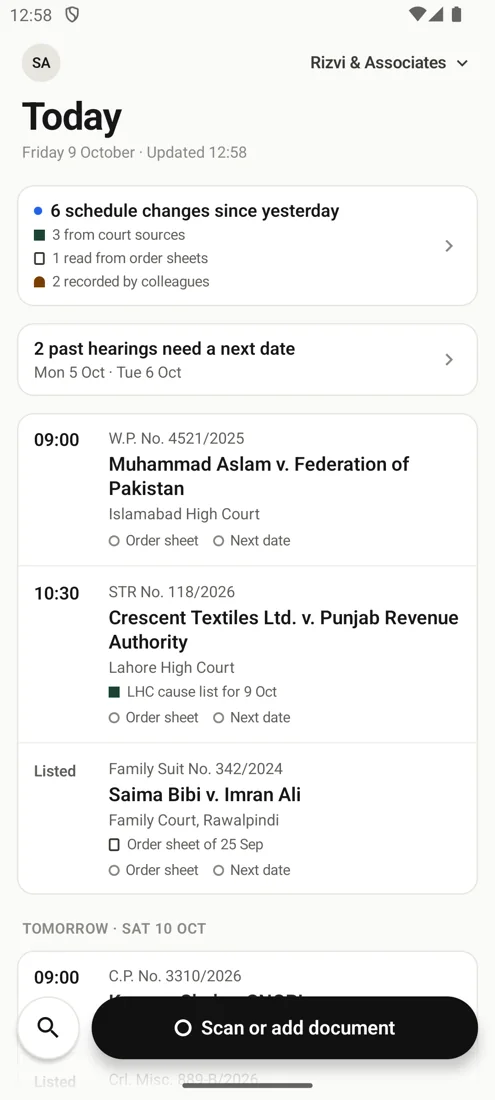
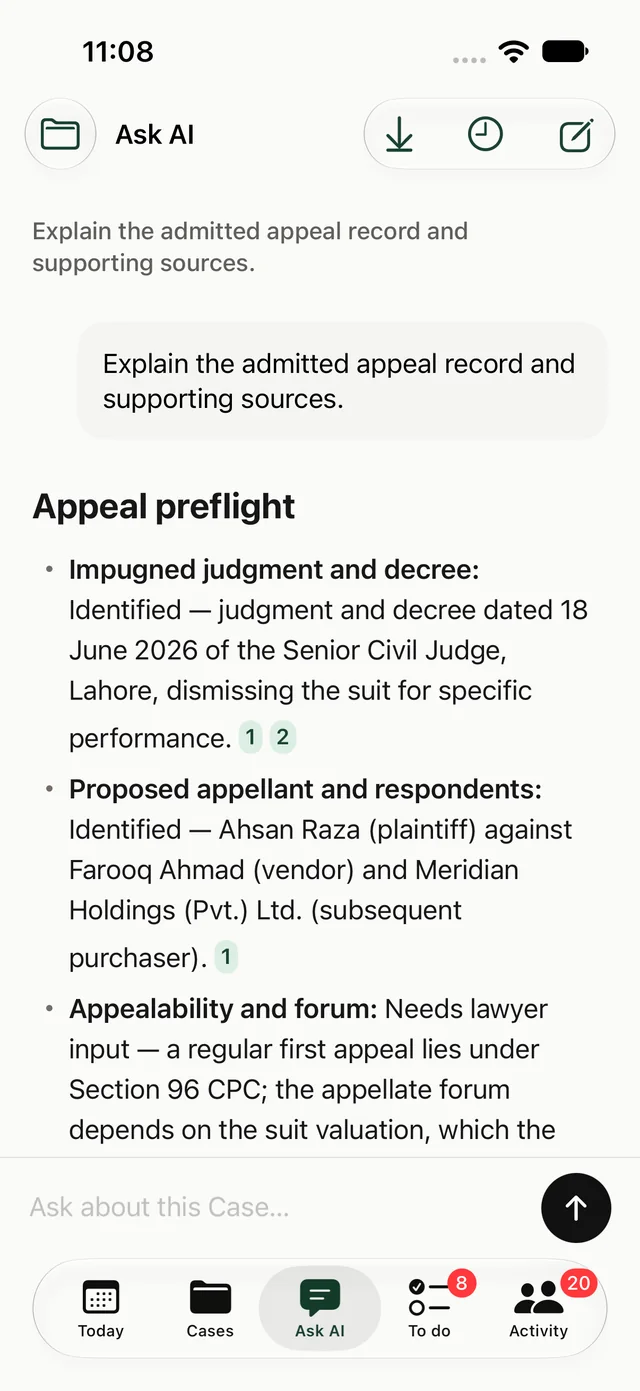
The same Case record, on the desk and in your pocket.
The apps are not a separate product. They open the Cases, documents, answers and approvals your chamber already keeps in CaseOps, with the same roles and access.
Who uses it
Principal
Every Case in the chamber
Associate
Assigned Cases, reviews and approvals
Clerk
Assigned Cases, hearings and capture
One CaseOps Case record
Five tabs in the apps
- TodayHearings, schedule changes and next dates
- CasesVault documents, hearings and saved Dossiers
- Ask AICited answers scoped to one Case
- To doOutstanding work across your Cases
- ActivityWhat changed across your Cases
Where it opens
Web workspace
Research, drafting, Dossiers and review
iPhone
Native SwiftUI app
Android
Native Jetpack Compose app
The legal work that happens away from the desk.
Know the day before you reach court.
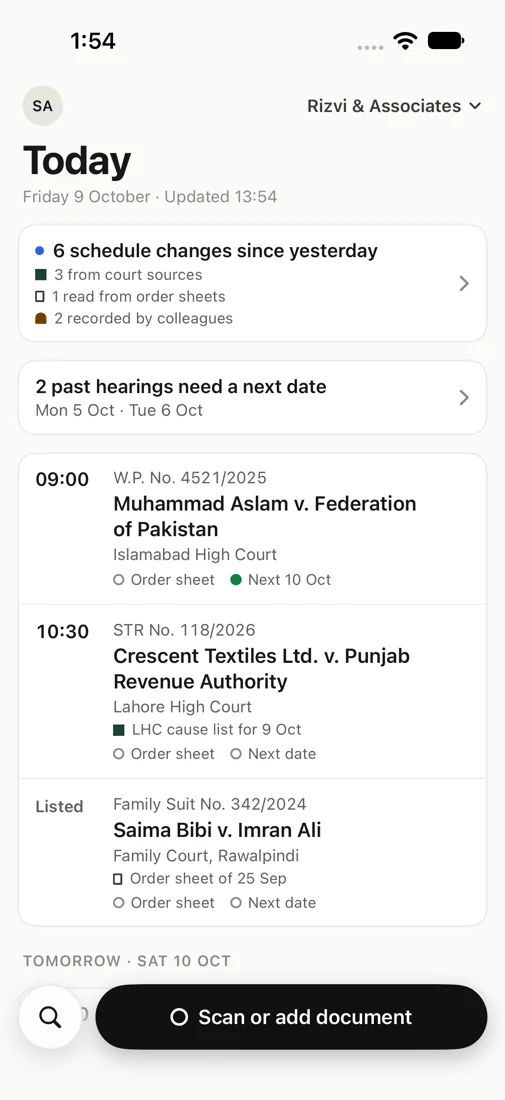
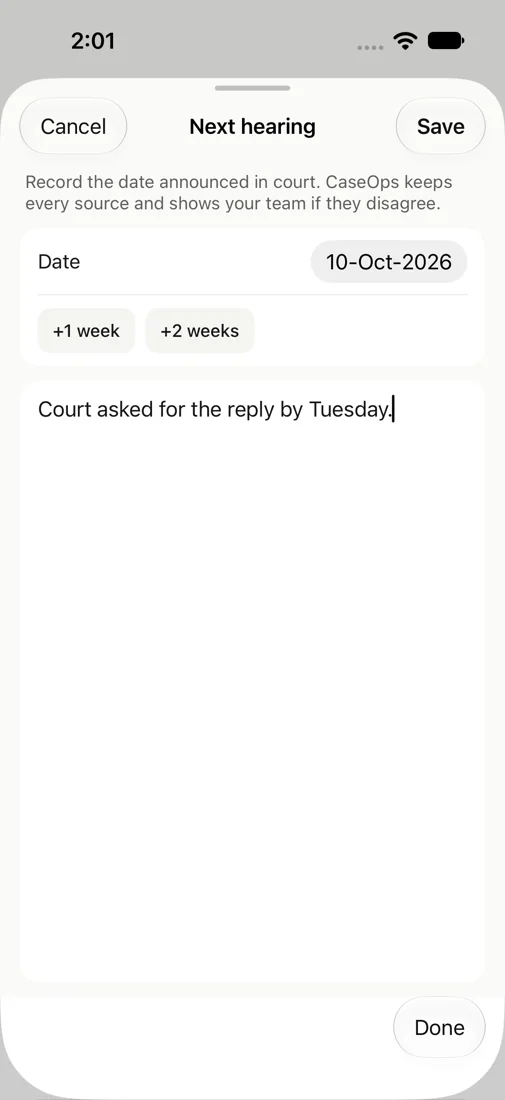
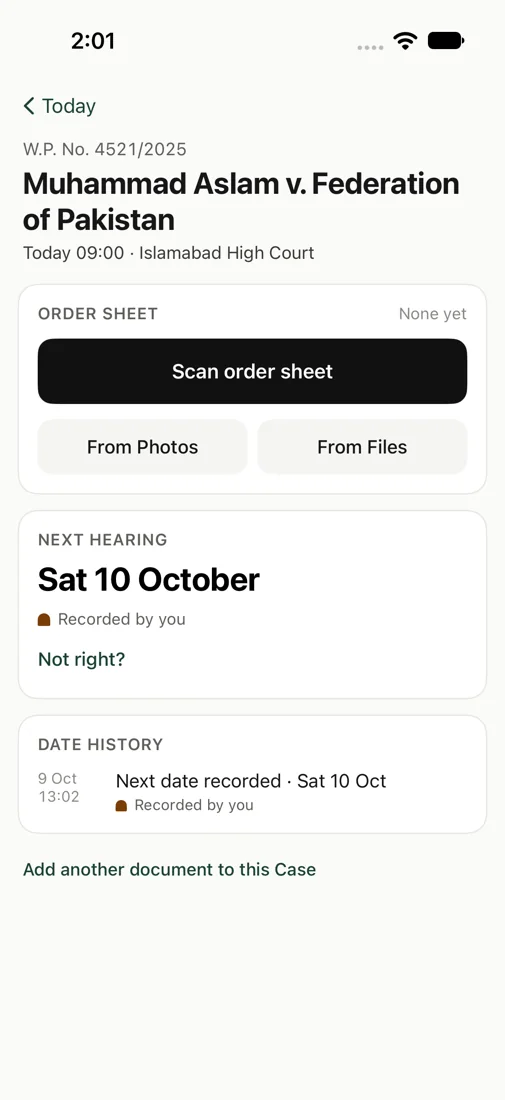
Today lists your hearings by time and court, what changed since yesterday and where each change came from, and past hearings that still need a next date. Record the next date in court and CaseOps keeps every source behind it.
- Changes labelled by source: court list, order sheet or colleague
- One-week and two-week shortcuts for the next date
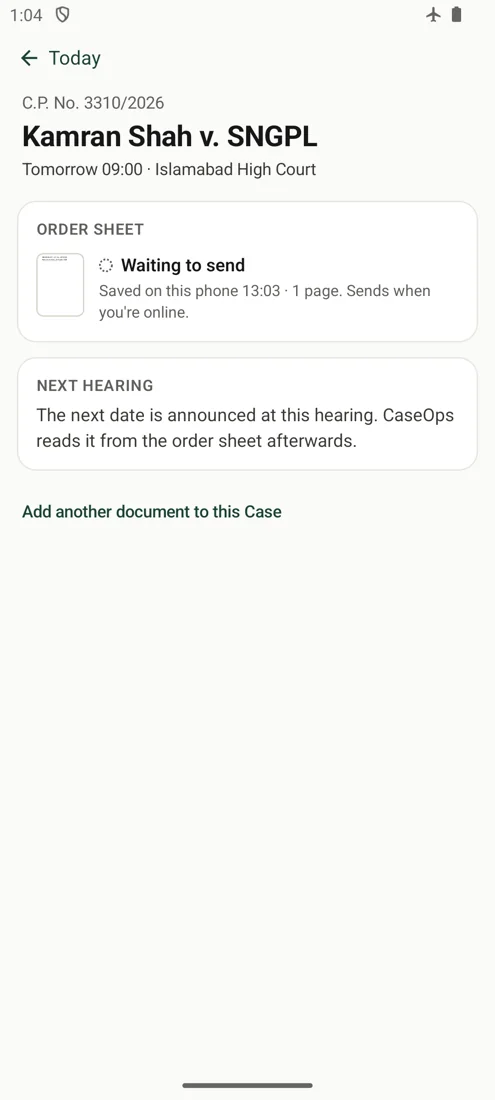
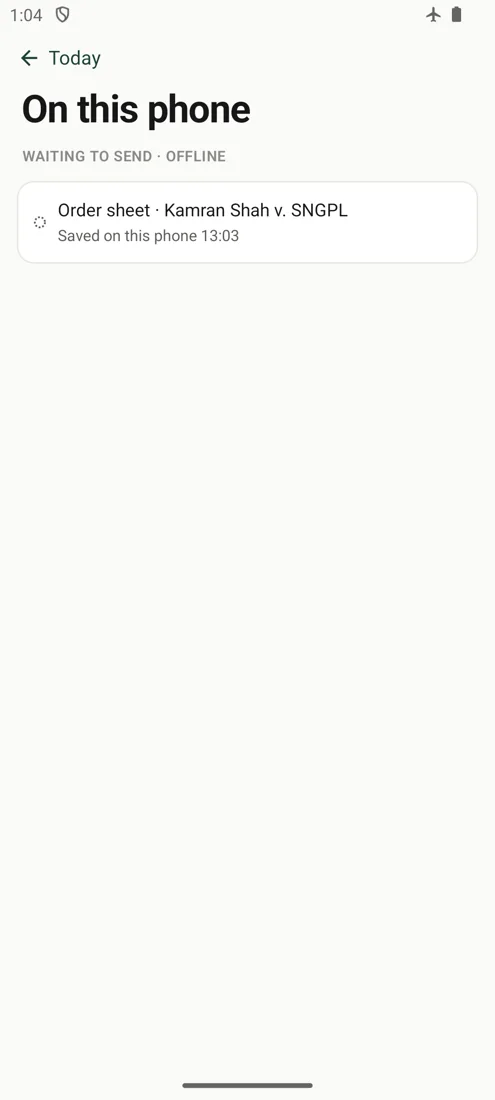
Capture keeps working when the signal does not.
Scans, photos, files and documents shared from other apps are saved on the phone first. If the connection drops in the court building, they wait and resume sending when it returns. Then they sit in the Case Vault with everything else.
- Scanner, Photos, Files and the share sheet
- Choose the Case now or later
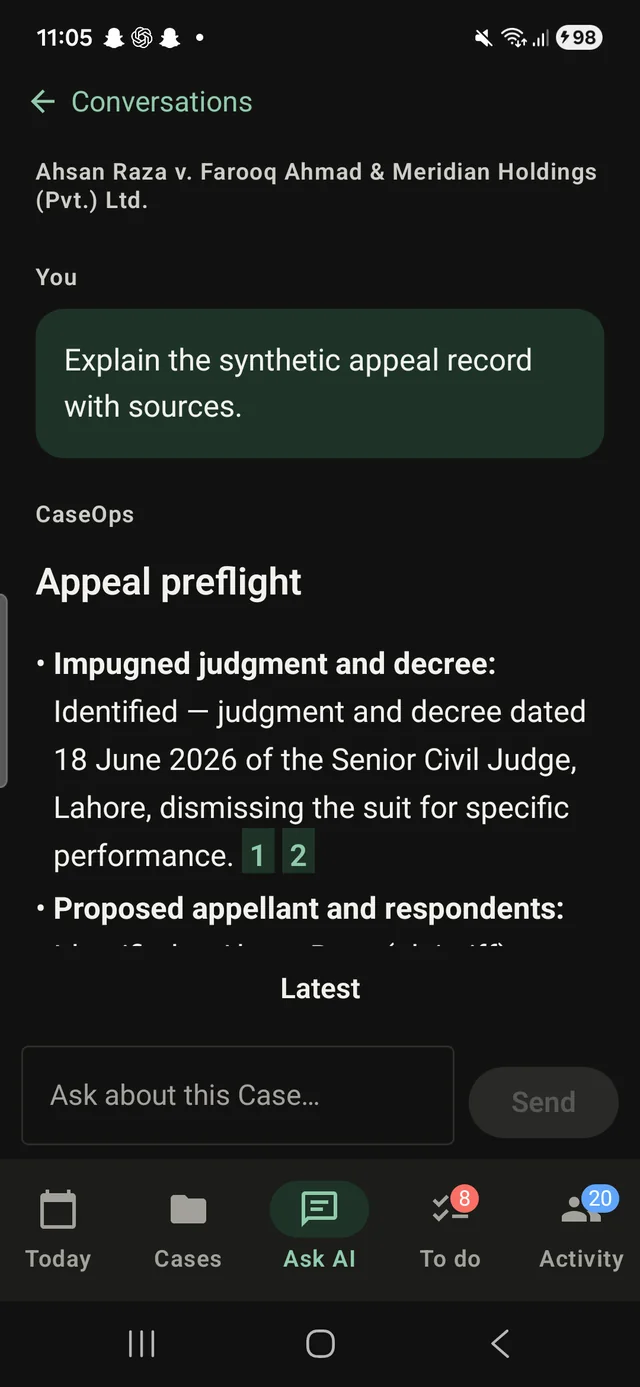
Ask about the Case. Open the source.
Ask AI answers questions scoped to one Case, includes citations to the Case record and marks what still needs a lawyer’s input. Tap a citation to open the source it points to. Saved Dossier working briefs can be read offline with their citations.
- Answers grounded in the Case record
- AI can be wrong: open the cited source and check it
From a court order to an approved client email.
A clerk captures the order at court, CaseOps reads it, and a lawyer decides what the client is told. Watch the 6 steps, or choose any one to see the screen it happens on.
- At court
- Filed
- Order read
- Draft prepared
- Lawyer approves
- Email queued
What the film shows
- At court. On an iPhone, the hearing is opened from Today and the two-page order sheet is scanned.
- Filed. The order is saved on the phone first, then shows as saved to CaseOps in the Case Vault.
- Order read. The reviewer’s iPhone shows the CaseOps alert “Client update ready for review” in Notification Center.
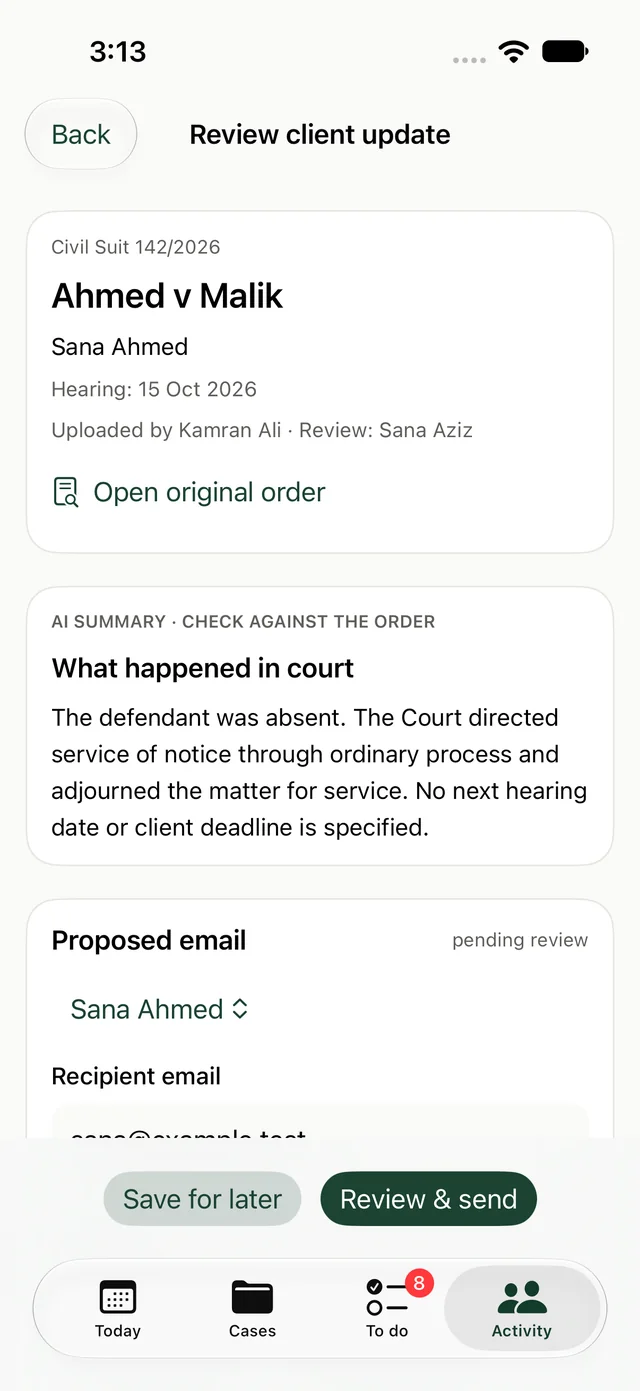
- Draft prepared. The review screen shows an AI summary marked “check against the order”, and the original order opens from it.
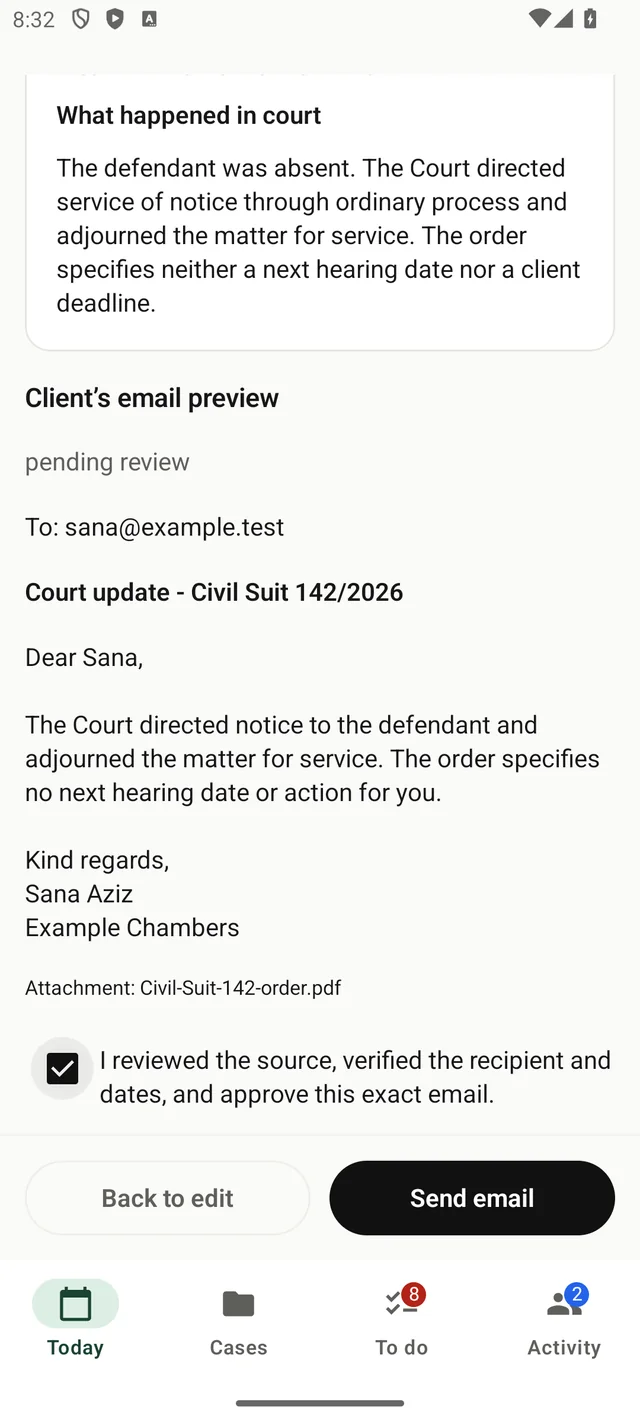
- Lawyer approves. The lawyer confirms they reviewed the source, recipient and dates, approves the exact email and taps Send email.
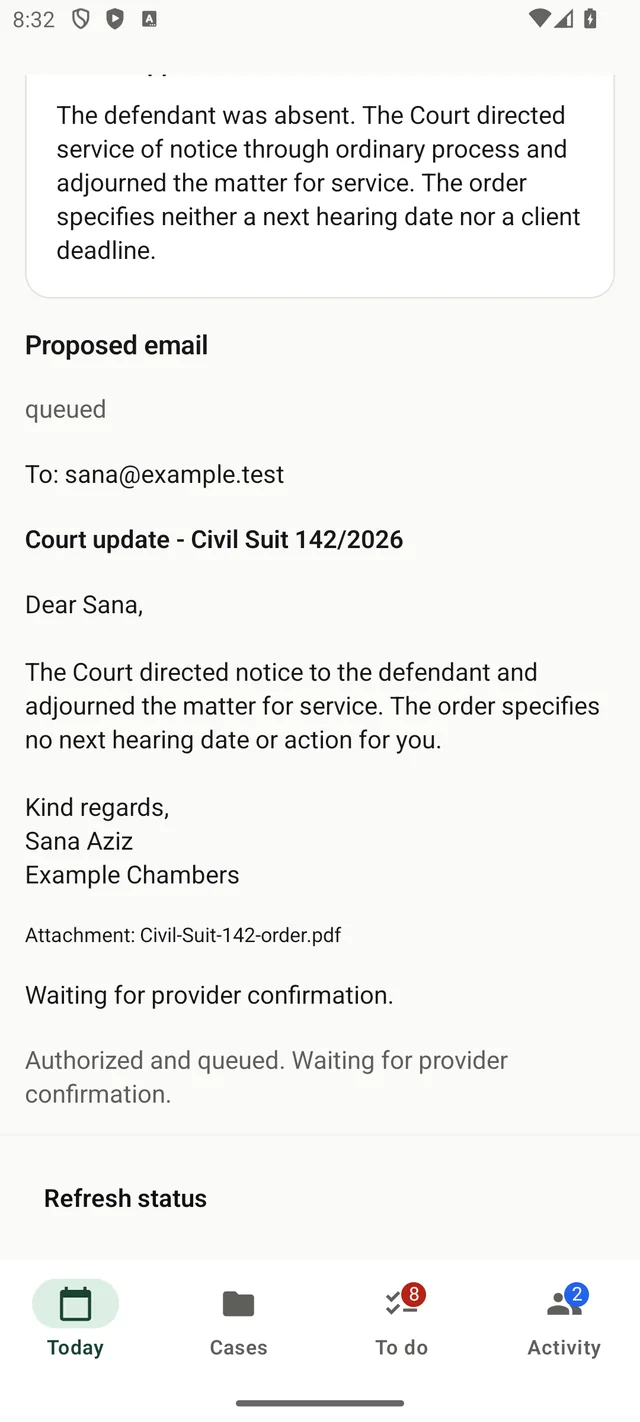
- Email queued. The app shows “Authorized and queued. Waiting for provider confirmation.” Delivery has not been confirmed.
- The Case’s Dossier working brief opens with its citations. The brief was prepared before this order was scanned.
- Ask AI on the Case shows a saved answer from an earlier run, and a citation in it opens the Case document behind it.
- The film ends on CaseOps for iPhone beside CaseOps for Android (a screenshot of the synthetic demo workspace, not a recording).
Step 01 · Clerk
Scan the order sheet before leaving court.
The hearing is already on the clerk’s Today screen. One tap opens the document scanner, and Photos or Files work too.
- Hearings arrive with their court, time and Case
- Scan, or add from Photos or Files
iPhoneOn screen: A hearing at the Islamabad High Court
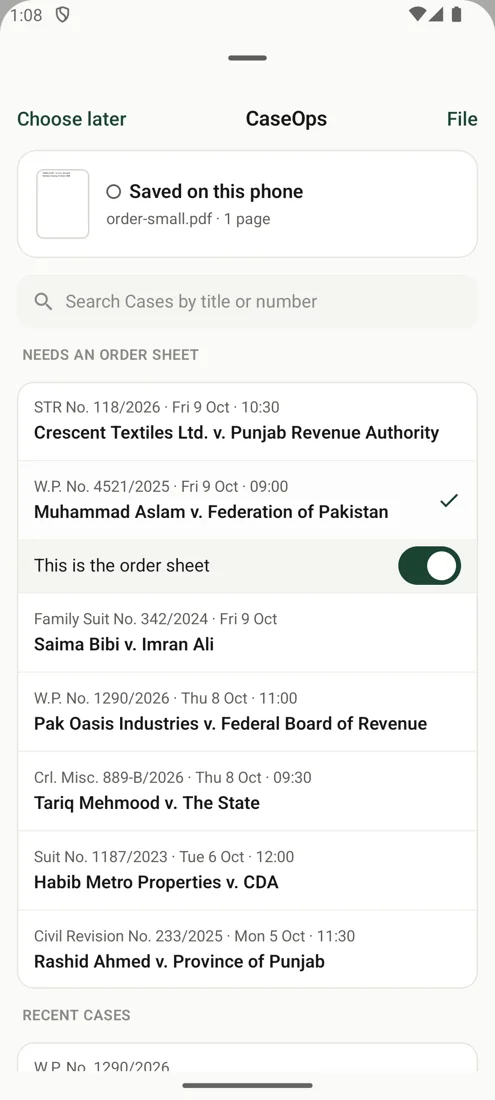
Step 02 · Clerk
Filed to the right hearing, even without signal.
The clerk picks the hearing and marks the document as its order sheet. With no signal in the court building, it waits on the phone and sends when the connection returns.
- Filed to the hearing it belongs to
- Offline captures resume sending on their own
AndroidOn screen: Filing a scanned order to its hearing
Step 03 · CaseOps
The Case updates once the order is read.
After upload, CaseOps reads the order in the background and adds a summary to the hearing. A next date it finds stays a suggestion until a person confirms it. The lawyer assigned to review client updates gets a private alert.
- Processing runs in the background after upload
- The alert names no client, Case or court
iPhoneOn screen: Today, with the review alert CaseOps sends (illustrated)
Step 04 · CaseOps
AI drafts the client update. It never sends it.
When an active client is linked to the Case, the same reading prepares a plain-English email as internal work for review. The summary is labelled “check against the order”, and the original order is one tap away.
- Prepared only when a client is linked to the Case
- The source order opens beside the summary
iPhoneOn screen: Review client update
Step 05 · Associate or Principal
The lawyer decides.
The lawyer can rewrite every word, then confirms they checked the source, the recipient and the dates. Only then can they send. A clerk can start this work but cannot send it.
- Approval locks the exact recipient, text and attachment
- The server refuses a clerk’s attempt to send
AndroidOn screen: Confirming the exact email before sending
Step 06 · CaseOps
The approved email is queued for delivery.
CaseOps queues the exact approved email only for the client’s current, consented address. The app waits for provider confirmation before reporting acceptance or delivery.
- “Queued” means awaiting provider confirmation, not sent or delivered
- WhatsApp date reminders are a separate service clients opt into
AndroidOn screen: After approval: authorized and queued
Synthetic demonstration data
The film is a recording of a fictional demonstration Case on an iPhone, with waiting time shortened. The step-through is a composite demonstration: screens are captured from CaseOps iPhone and Android builds across separate synthetic Cases, and processing that runs in the background is shown as one step. The alert in its step three shows the exact text CaseOps sends; it is drawn there, not captured from a device.
AI prepares. The lawyer decides.
No client email leaves CaseOps without a lawyer’s approval of that exact message.
Only a lawyer can send
A clerk can start the work. Sending needs a lawyer with authority on the Case, and the server enforces it.
The exact email is frozen
Approval locks the recipient, subject, text and attachment. Nothing changes after the lawyer says yes.
Consented addresses only
Email goes only to the client’s current address with their consent on that Case.
Quiet lock screens
Alerts name no client, party or Case. The details stay behind sign-in.
Honest delivery status
Queued, accepted by the email provider and failed are shown as what they are.
The source stays one tap away
The original order opens beside the AI summary, so the lawyer checks before approving.
WhatsApp hearing-date reminders are a separate service that clients opt into, with their own consent.
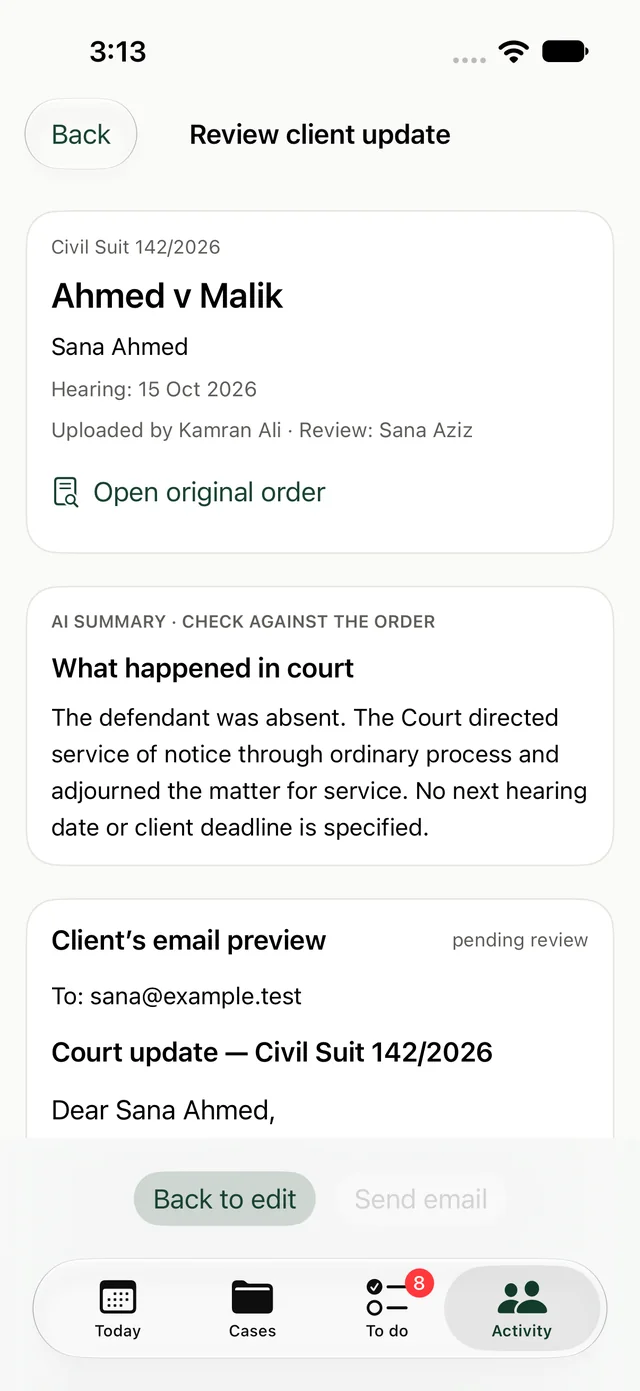
The client’s email preview, pending review · synthetic demonstration data
Built natively. Not a website in a phone frame.
Two apps designed together and built for their platforms, so a principal on an iPhone and a clerk on Android see the same court day. Layouts follow each platform’s conventions, so some screens differ.
- SwiftUI on iPhone, Jetpack Compose on Android
- Light, dark and system appearance
- Sign-in, roles and Case access match the web workspace
- Hearing and review alerts open CaseOps, with details behind sign-in
- iPhone · Native SwiftUI app
- On the App Store, for team workspaces with two or more active members.

- Android · Native Jetpack Compose app
- On Google Play, for teams and solo practitioners.

Both apps sign in to an existing CaseOps workspace.
The same Today screen on iPhone and Android · synthetic demonstration data
CaseOps, wherever you work.
The Case record, its documents and the lawyer’s decisions, on the web and on the phone, in court and out of it.
The apps sign in to an existing CaseOps workspace. New to CaseOps? Start with a demo.
App screens are captures from CaseOps iOS and Android builds using synthetic demonstration data. Chambers, parties, Cases and documents are fictional. Captured from development builds on the iOS Simulator, the Android emulator and an Android phone.
The iPhone app is on the App Store and the Android app is on Google Play. Sign-in needs an existing CaseOps workspace. The iPhone app is for team workspaces with two or more active members; the Android app also works for solo practitioners. AI summaries and answers can be wrong: check them against the cited sources and the court record.